

What is EasyTranslate?
EasyTranslate is a lightweight and intuitive localization system for Unity.
It allows developers to easily manage text translations for any game or application using simple CSV files — no complex databases or JSON formats required.
With a clean and visual Editor window, you can create and manage language datasets directly inside Unity, link them to your UI elements, and switch languages at runtime with a single line of code.
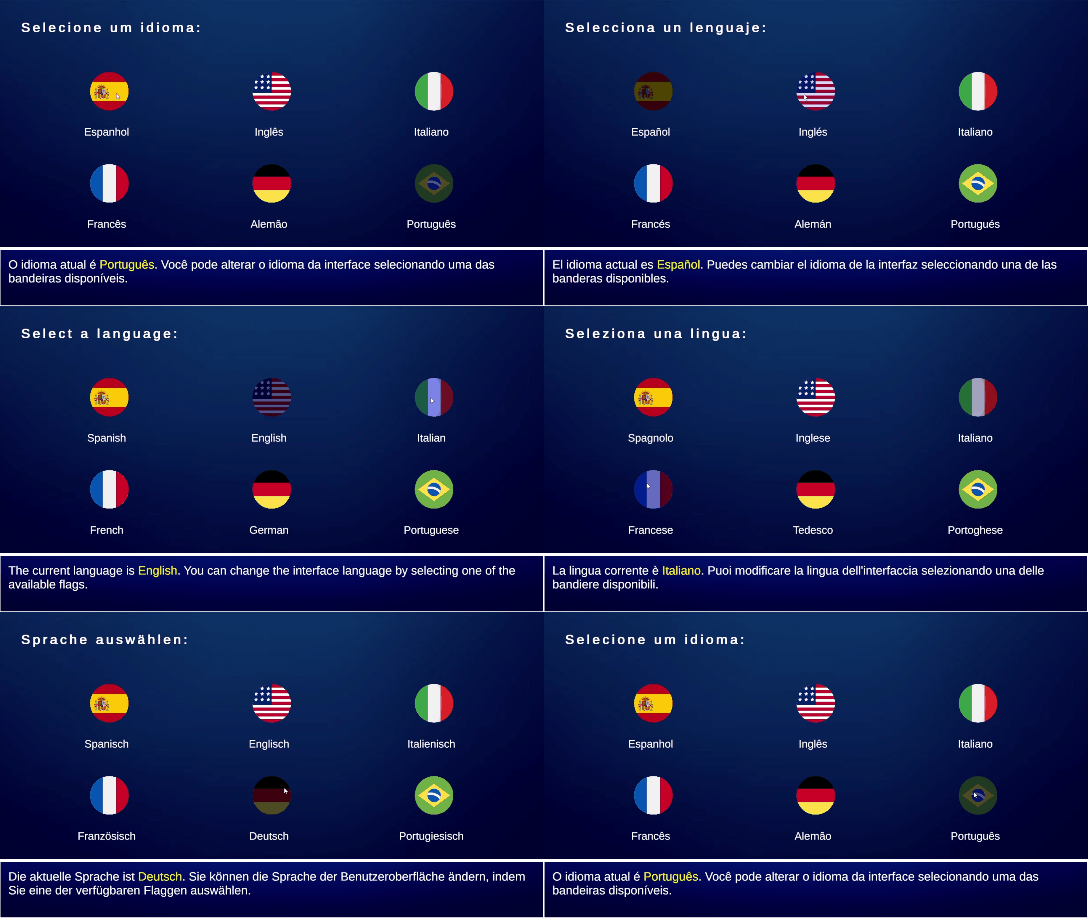
Characteristics:
✅ Fast setup: Start localizing your project in minutes.
🧩 No external dependencies: Everything runs inside Unity.
🗂️ CSV-based workflow: Edit your translations with Excel, Google Sheets, or any text editor.
⚡ Optimized performance: Translations are cached in memory for O(1) lookups.
🔄 Runtime language switching: Change language instantly, with automatic UI updates.
🧠 Dynamic text support: Easily insert variables like player names, scores, or levels using
{0},{1}, etc.🧱 Editor tools included: Built-in Translation Manager for dataset creation and editing.
Creating Your Translation CSV
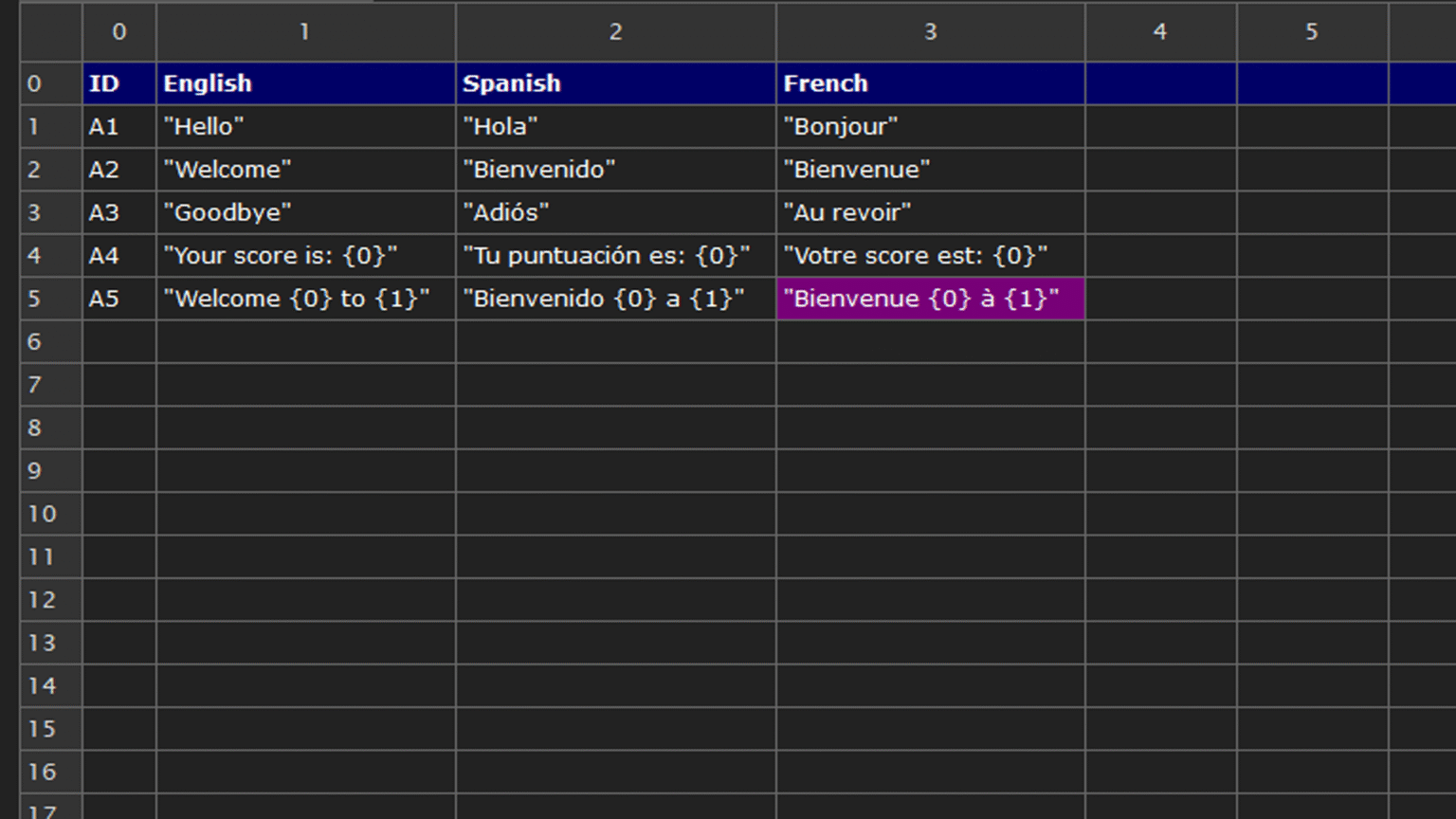
Before using EasyTranslate, you must create a CSV file that contains all your translations. This file defines every piece of text that your project will use, along with its translations for each language.
The CSV format is simple, human-readable, and fully compatible with tools like Excel, Google Sheets, or any text editor. You can include as many languages as you need — simply add more columns (e.g. Italian, German, Portuguese). Each new column represents one language available at runtime.
Important Format Rules
- All translations must be enclosed in double quotes →
"text". - The first column (
ID) defines the unique identifier for each text (for example:A1,MENU_START,DIALOG_1). - Use
{0},{1},{2}… for dynamic parameters replaced at runtime. - Avoid accents or spaces in language names (use
Spanish, notEspañol). - You can have multiple CSV files for different categories (UI, Dialogs, Menus, etc.).
Once your CSV file is ready, import it into your Unity project (anywhere inside the Assets/ folder).
Creating a Translation Dataset
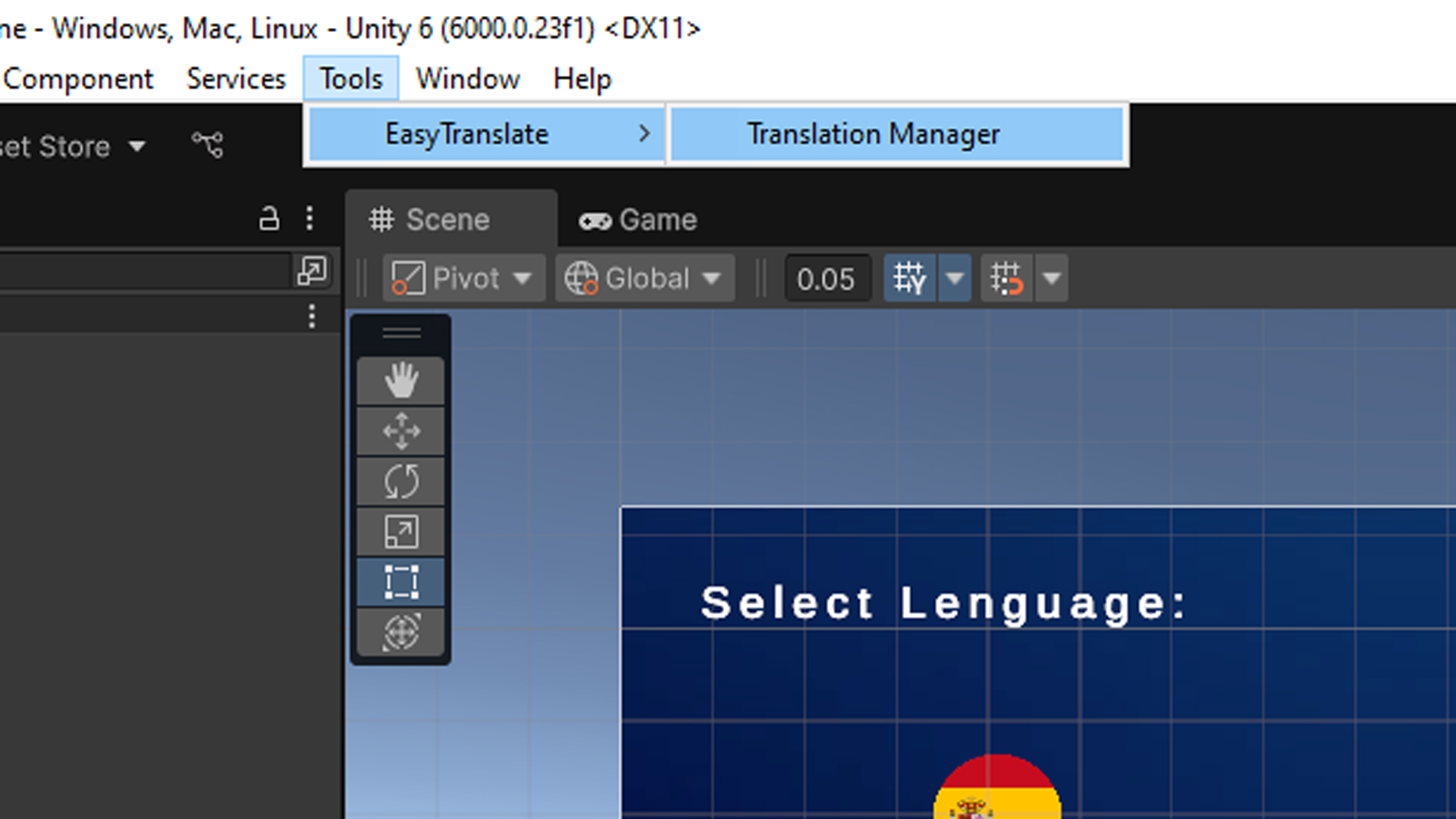
Open it from the main menu: Tools → EasyTranslate → Translation Manager.
Creating a New Translation
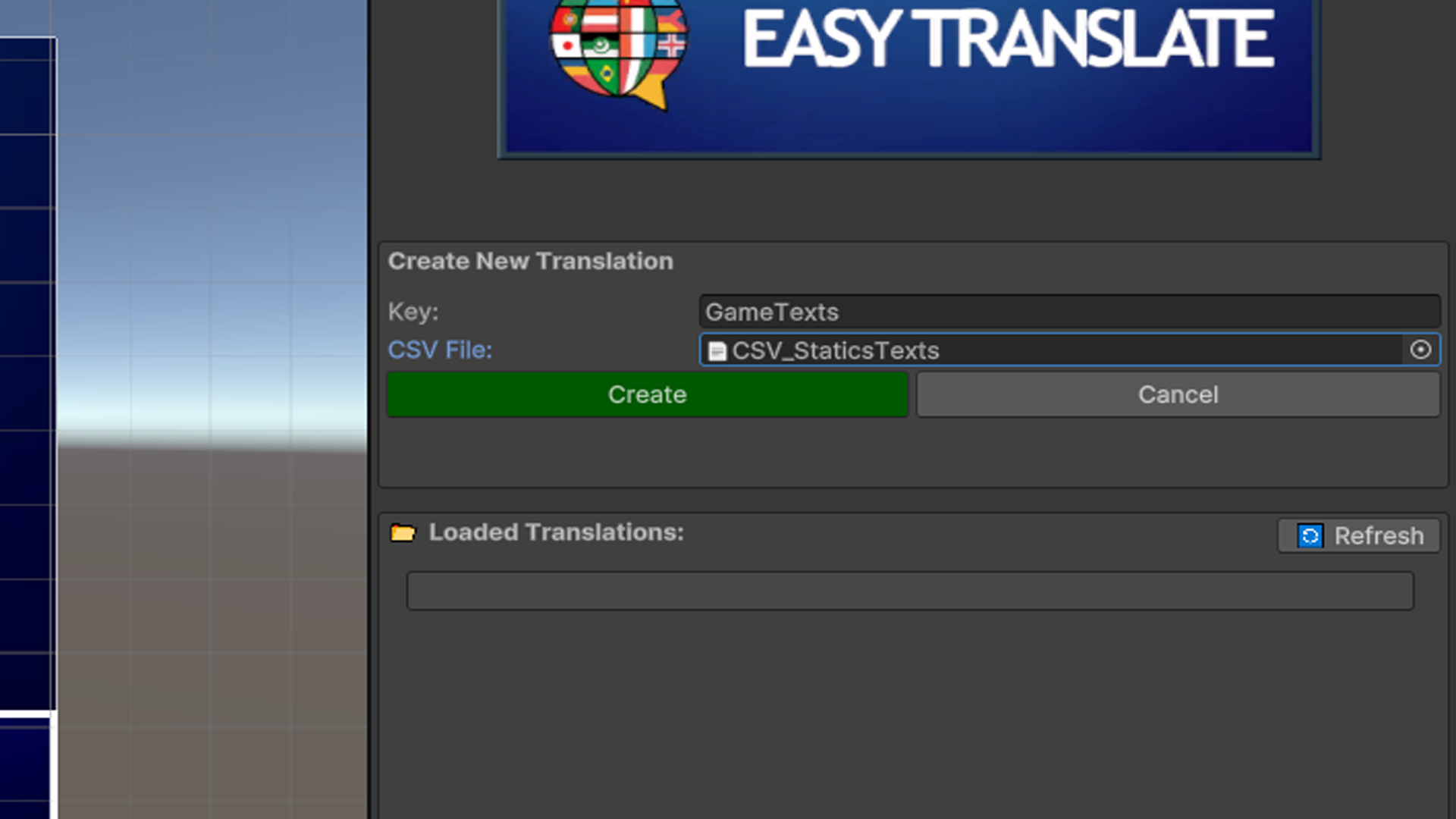
Once the Translation Manager window is open, click Create New Translation.
A small window will appear where you can define your dataset:
Key: The unique name of your translation dataset (for example,
GameTextsorMenuTexts).CSV File: Select the CSV file that contains your translations.
After confirming, EasyTranslate will automatically create a new .asset file inside your project.
This file stores all translation data from your CSV and can be used by your UI texts at runtime.
Assigning Translations to UI Text
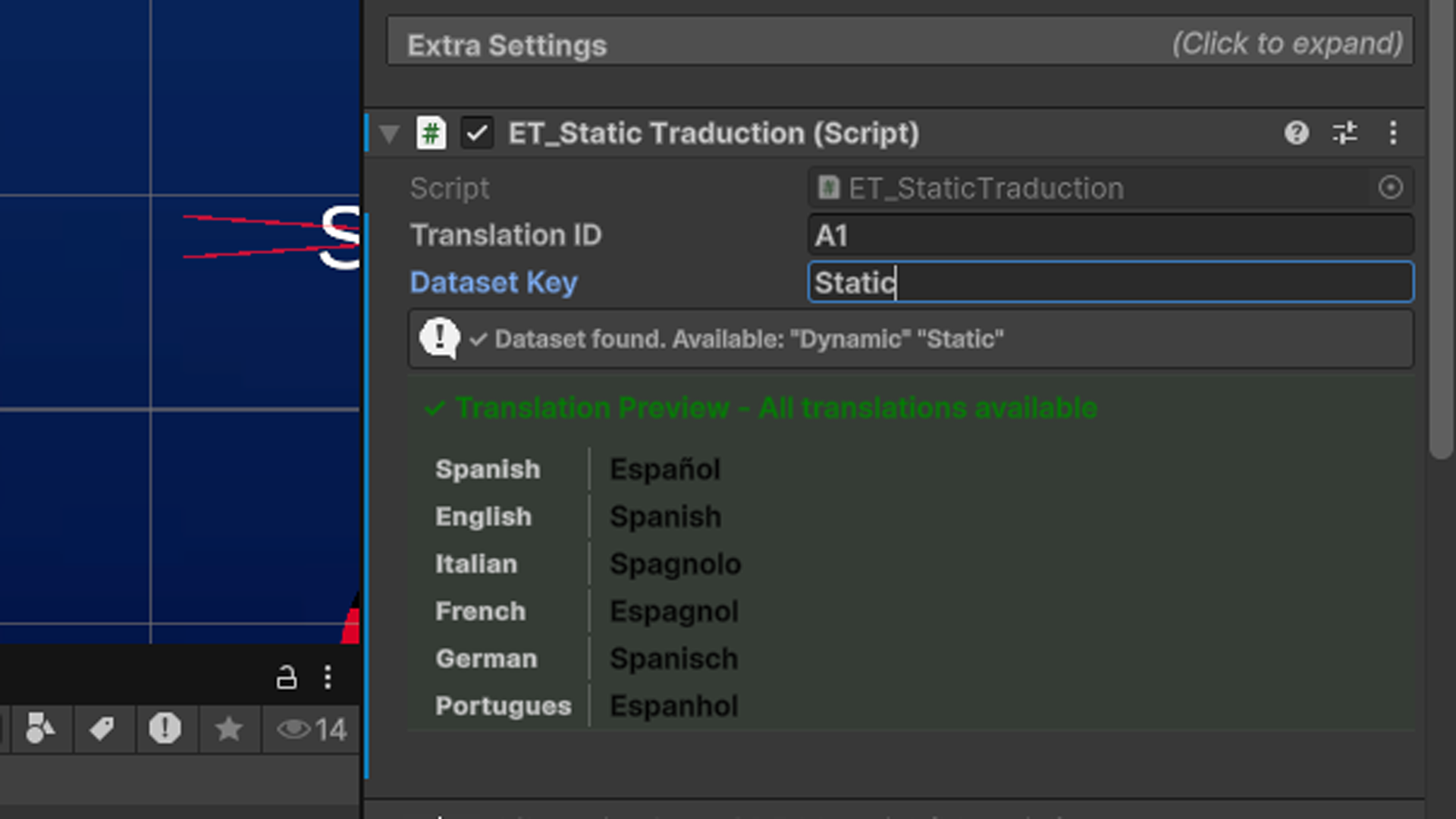
Use ET_StaticTraduction for texts that never change at runtime, such as menu buttons, labels, or titles.
This component automatically displays the correct translation for each language, without the need for extra code.
Setting up Static Translations
Use ET_StaticTraduction for UI texts that never change during gameplay — like menu buttons, titles, or labels.
- Add ET_StaticTraduction to a TextMeshProUGUI object.
- In the Inspector, set:
- Dataset Key: The name of your dataset (e.g.
GameTexts) - Translation ID: The text ID from your CSV (e.g.
A3)
- Dataset Key: The name of your dataset (e.g.
- Done! The text will automatically display the correct translation based on the active language.
💡 Tip: Perfect for static UI elements like “Start”, “Exit”, or “Options”.
Dynamic Translations
Dynamic translations are texts that change during runtime, such as dialogue lines, score displays, or messages that include player names or variables.
Unlike static texts, these are not tied to a fixed UI label — they are generated through code using translation requests.
Use dynamic translations when the text content can change during gameplay — for example, scores, dialogue lines, or player messages.
Example: Translating a dynamic text with one parameter
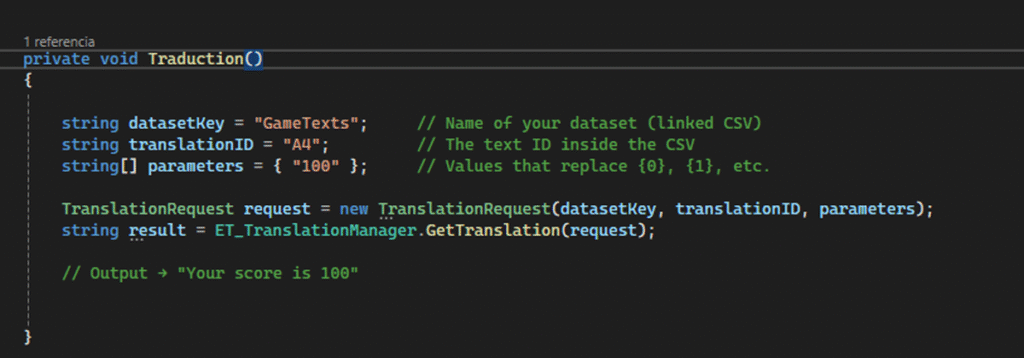
DatasetKey: The name of the dataset created in the Translation Manager.
TranslationID: The text ID from your CSV file.
Parameters: (Optional) Values that replace placeholders like
{0},{1}, etc.💡 Notes:
If your text doesn’t use parameters, you can omit the third argument.
If you pass an empty parameter array or include more parameters than required, EasyTranslate simply ignores the extra values without throwing errors.
Detecting Language Changes
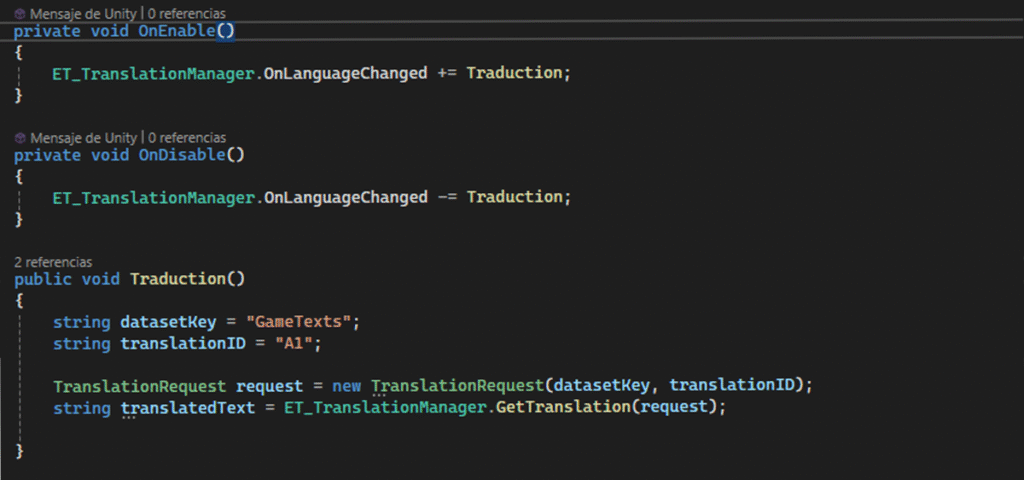
You can subscribe to ET_TranslationManager.OnLanguageChanged to be notified whenever the active language changes.
This allows you to update your UI texts automatically.
Changing the Language
To change the active language in your project, simply call:

The method receives a numeric parameter that represents the position of the language column in your CSV file.
Languages are counted starting from 1, and the maximum number depends on how many translations your CSV contains.
For example:
If your CSV includes English, Spanish, and French —
then you would use 1 for English, 2 for Spanish, and 3 for French.
When you call SetLanguage(), EasyTranslate will:
Update the current language globally.
Automatically notify all scripts and UI components subscribed to
OnLanguageChanged.Instantly refresh all visible texts using the new language.